

Contact Form 7 doesn’t have a signature field. It never has, and unlike WPForms or Fluent Forms, there’s no official upgrade path to unlock one — CF7 is free, stays free, and its own team hasn’t shipped a native signature option at any tier, paid or otherwise.
That’s on purpose, not an oversight. CF7’s entire design philosophy is minimalism: a small core plugin extended through hooks and third-party add-ons rather than a growing list of built-in fields. It’s part of why CF7 has stayed genuinely free for as long as it has. But it also means that if you need a Contact Form 7 signature field, you’re choosing between a handful of independent third-party plugins — or adding one through SignSnap. Here’s exactly how the SignSnap route works, since Contact Form 7’s editor behaves differently from most other form builders and the steps aren’t quite the drag-and-drop you might expect.
Does Contact Form 7 Have a Signature Field?
No — not built in, and not as an official add-on either. What exists instead is a small ecosystem of independent, third-party plugins built specifically to patch this gap. One example, Digital Signature For Contact Form 7, has 5,000+ active installs and a 4.9-star rating as of this writing, with a free tier plus a paid upgrade for multi-signature support and attachment handling. It’s a legitimate option if you only need CF7 covered and nothing else.
The trade-off with any small independent plugin is worth checking before you commit: how recently it’s been updated, how many people are actually using it, and what’s paywalled behind its own “Pro” version. None of that makes a plugin bad — it just means the due diligence is on you, since there’s no CF7-team stamp of approval to lean on either way.
Why Contact Form 7’s Editor Is Different
If you’ve added a signature field to WPForms or Fluent Forms before, don’t expect the same drag-and-drop experience here. CF7 forms are built from a plain-text template full of bracketed tags — [text your-name], [email your-email], and so on — not a visual canvas. Fields get added by clicking a button above the editor that opens a small popup, configuring it, and inserting the generated tag into the template at your cursor. SignSnap follows that same convention rather than trying to bolt a drag-and-drop UI onto a plugin that was never built for one.
How to Add a Signature Field to Contact Form 7 with SignSnap
Step 1: Install SignSnap
Install and activate SignSnap like any WordPress plugin. It detects Contact Form 7 automatically and loads only that adapter — the code for the other seven plugins SignSnap supports never runs on your site.
Step 2: Insert the Signature Tag
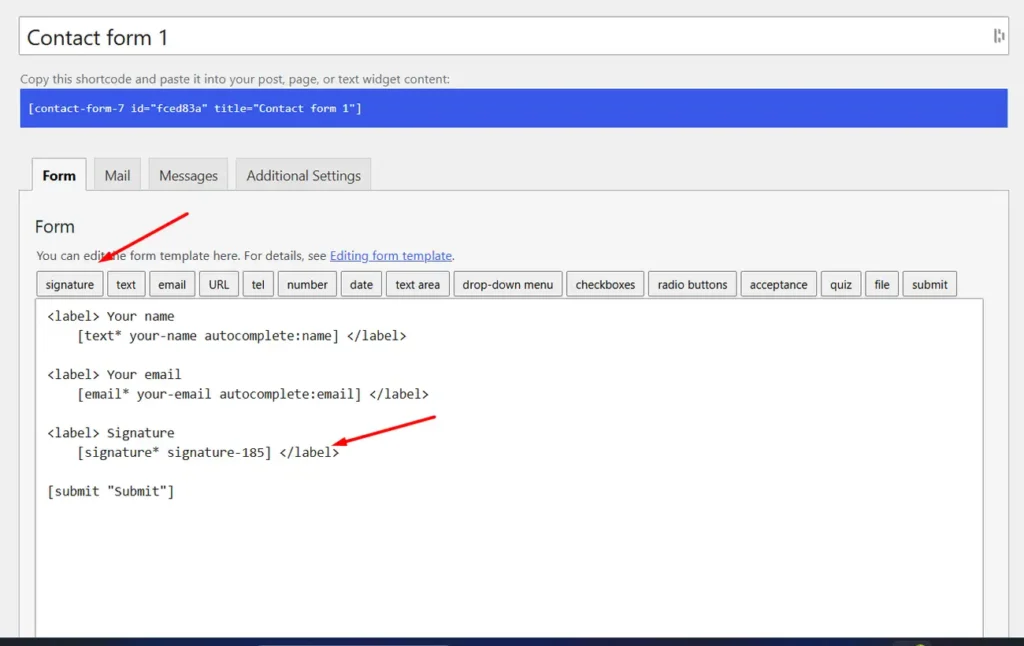
Open your form in Contact Form 7 → Contact Forms, and on the Form tab you’ll see a row of “Add form-tag” buttons above the template editor. Click signature. A panel opens where you can:
- Name the field
- Check Required field if the form shouldn’t submit without a signature
- Optionally set an ID or CSS class
Click Insert Tag, and a tag like [signature your-signature] drops into the template wherever your cursor was.
Step 3: Add the Mail-Tag So It Shows Up in Emails
This step is easy to miss, and skipping it is the single most common reason a CF7 signature field “doesn’t work” — the field captures fine, but the notification email arrives with nothing where the signature should be. Switch to the Mail tab and add the matching mail-tag into the message body:
[your-signature]— inserts a link to the stored signature image[_signature_image_your-signature]— embeds the signature directly as an image in the email itself
Most people want the second one.
Step 4: Customize How the Pad Looks
SignSnap’s global settings page controls pen color, stroke width, and pad size/background across every form on your site — including any other plugin SignSnap supports if you’re running more than one. Set it once; it applies everywhere.
Step 5: Test It, Then Publish
Submit a test entry and check two things: that the signature shows correctly wherever you display CF7 entries (or in Flamingo, if you use it), and that the notification email actually renders the signature image using the mail-tag from Step 3. Both need checking separately — the field working on the front end doesn’t guarantee the email is set up right.
What Happens to the Signature After Submission?
SignSnap converts the captured signature into a real WordPress Media Library attachment the moment the form is submitted — not a base64 string sitting in an email or an entry. Alongside it, SignSnap logs a timestamp, IP address, and user agent for whoever signed. That’s worth checking for in whatever CF7 signature option you end up using, including third-party ones — it’s the difference between a decorative squiggle and something that could actually hold up as a real signed record.
Under the U.S. ESIGN Act and state UETA laws, an electronic signature generally needs to be attributable to the person who made it — which is exactly what an audit trail is for. (Not legal advice — check with an attorney if a signed CF7 form needs to hold up contractually.)
Your Options at a Glance
| Free CF7 + a Third-Party Signature Plugin | SignSnap | |
|---|---|---|
| Backed by the official CF7 team | No — independent developer either way | No — independent developer either way |
| Audit trail (timestamp, IP, user agent) | Not documented on the options we checked | Built in |
| Storage | Varies by plugin | WordPress Media Library attachment |
| Works the same way on other form plugins | No — CF7 only | Yes — same engine across 8 plugins |
| Settings | Per-plugin | One global settings page |
| Price | Often free, with paid upsells for extra features | From $19/year, or $49 lifetime* (single site) |
*SignSnap’s current pricing reflects an active promotion — check current pricing for up-to-date plans.
If CF7 is the only form plugin on your site and you’re not planning to add more, either route can work — do the due diligence either way. If you’re running CF7 alongside WPForms, Fluent Forms, or any of SignSnap’s other supported integrations, one plugin covering all of them with one settings page is the bigger time-saver.
Common Questions
Why isn’t the signature showing up in my notification email? This is almost always the mail-tag step. Add [_signature_image_your-field-name] to the Mail tab’s message body to embed it as an image, or [your-field-name] for a plain link. The form-tag alone only captures the signature — it doesn’t wire it into the email on its own.
Is a Contact Form 7 signature field legally binding? It can be, if it captures enough to attribute the signature to a specific person — which is what the timestamp/IP/user-agent audit trail is for. Whether it’s sufficient for your specific use case is a legal question, not a technical one; check with an attorney for anything contractually significant.
Does the signature field work on mobile? Yes. Touch, stylus, and mouse input all work the same way.
Can I require a signature before the form submits? Yes — check “Required field” in the tag-generator panel when you insert the tag (or use the signature* variant if you’re editing the template by hand).
Can I use SignSnap on other form plugins too? Yes — SignSnap supports eight form plugin integrations total, including WPForms, Fluent Forms, Elementor Pro, MetForm, Formidable Forms, SureForms, and WS Form, all through the same engine and settings page.
Try It Before You Install It
Test the signature pad — pen color, stroke width, pad size — on the live demo, no install required.